
No need to sit in front of your computer. Send a voice command from your phone, and the AI handles your presentation on your office machine.
1. The Problem: Why You Need Remote PowerPoint Control
You know the feeling:
- It’s Saturday afternoon. You’re on the couch. Your boss messages: “Can you update the Q2 client deck? Need it by Monday.” Now you have to drag yourself to the computer.
- You’re traveling for work. Your laptop died. But that investor pitch deck needs one more revision before tomorrow’s meeting.
- Your company has strict data policies — sensitive files can’t leave the office network. You can’t copy them to your personal device.
- Your computer is running a long task (rendering, data processing) and you can’t just sit there watching it.
Traditional remote desktop tools (TeamViewer, Chrome Remote Desktop, etc.) solve the connectionproblem — but they don’t solve the work problem. You’re still poking at a tiny screen with your thumb, trying to move text boxes around.
Trae flips the script entirely. Instead of you controlling the remote computer, Trae’s AI Agent does the work for you on that computer. You send a command from your phone — “Open the Q2 deck and update the revenue chart” — and the Agent executes it on your office machine. You don’t touch the files. You don’t fight with a laggy remote desktop. You just give instructions.
“Remote desktop is you operating the computer through a tiny screen. Trae SOLO is you giving orders and the Agent doing the work. The difference? One is you climbing the stairs yourself. The other is you sending someone else to fetch it.”
2. What You Need to Know Before You Start
Trae (pronounced “tray”) is an AI-native IDE from ByteDance that has evolved far beyond coding. In March 2026, Trae launched SOLO — a standalone mode that works across desktop, web, and mobile, enabling users to handle documents, data analysis, and PPT generation through natural language. With the mobile app, you can remotely control your paired computer and assign tasks from anywhere.
Two Ways to Control Remotely
| Approach | Best For | How It Works |
|---|---|---|
| SOLO Mobile | Remote control of your office/personal computer | Phone app pairs with desktop client; tasks execute on the paired machine |
| Remote-SSH | Remote servers (Linux) | Connect via SSH to edit files and run code on remote servers |
For PPT editing on your office computer, SOLO Mobile is the simpler, more practical choice — no network configuration, no public IP address, no SSH keys. Just log in with the same account on both devices and pair them.
⚠️ Note for iOS users: The “TRAE – SOLO” app is currently not available on the US App Store. If you use a US Apple ID, you’ll need to switch to another region’s App Store to download it.
3. Step-by-Step Setup Guide
SOLO Mobile — Control Your Office Computer from Anywhere
This is the “couch-to-presentation” solution.
Step 1: Download and Sign In
- On your phone: Search for “TRAE – SOLO” in your app store and download it
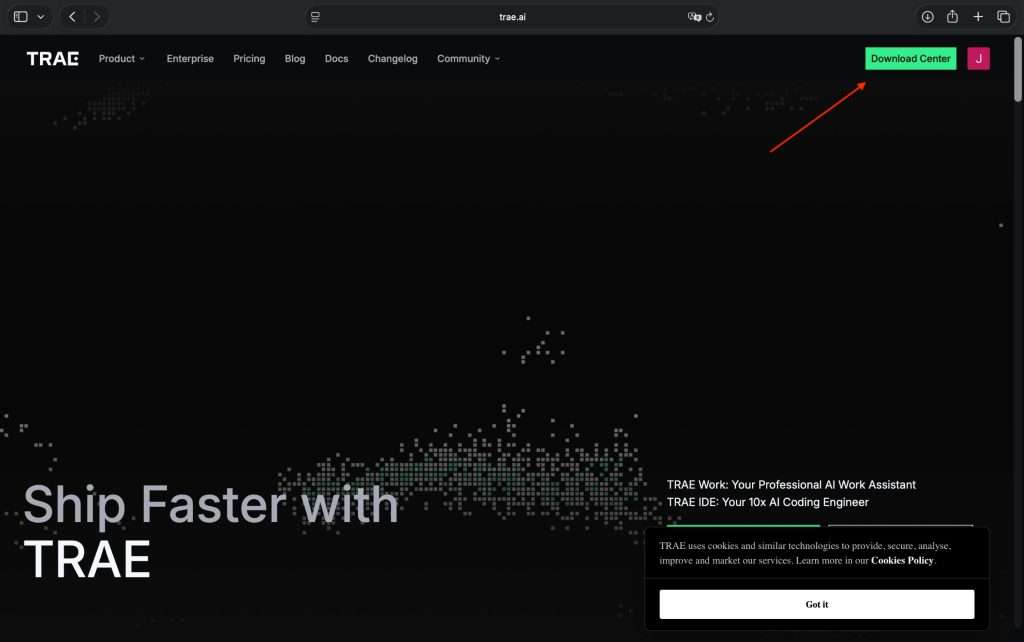
- On your computer: Download Trae Solo desktop from www.trae.ai
- Sign in with the same phone number on both devices
Step 2: Enable Mobile Control on Your Computer
- Open Trae Solo on your computer
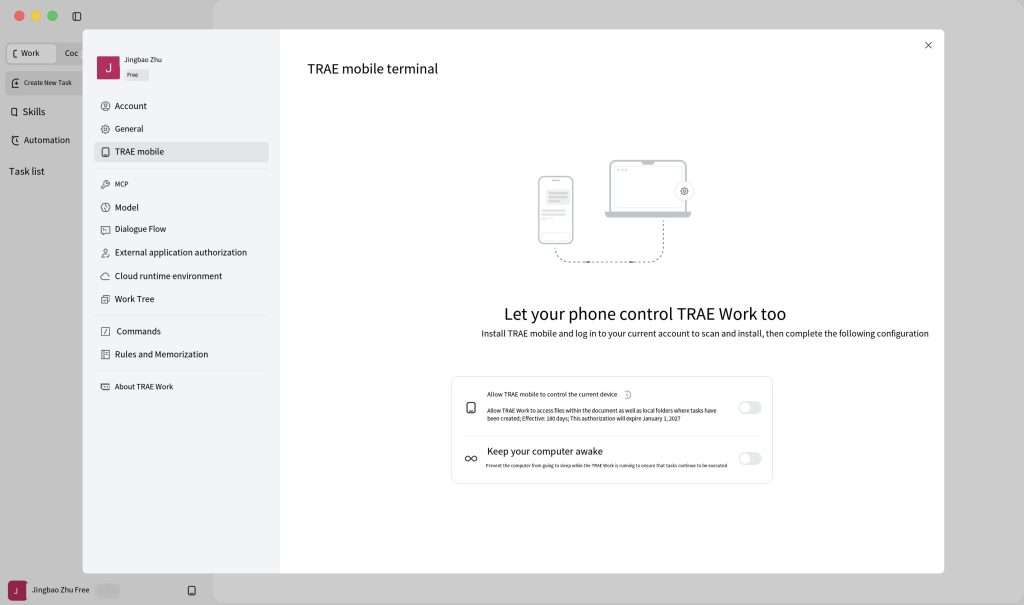
- Go to Settings → SOLO Mobile
- Toggle on “Allow SOLO Mobile to control Solo on this device”
- A pop-up will appear — click Confirm to authorize cloud storage for essential content (only your conversation history and AI-generated outputs are stored)
Step 3: Authorize Folder Access
Grant Trae Solo access to the directories where your PPT files are stored. For security, you can authorize specific folders rather than your entire drive.
💡 Pro tip: Create a dedicated folder like
C:\TraePPTand store all your presentation files there. It keeps things organized and makes authorization straightforward.
Step 4: Pair Your Phone
- Open the Trae Solo app on your phone
- Tap the “Task Runtime Environment” icon in the bottom-left corner
- Select “Select Task Run Location” → “Connect My Computer”
- Your computer will appear in the list with “Online” status
- Optional: Toggle on “Keep computer awake” — this prevents your machine from going to sleep while tasks are running
Pairing lasts for 180 days. No need to re-pair every time you use it.
Step 5: Send Your First PPT Task
In the Trae Solo mobile app’s chat interface:
- Select the target folder on your computer where you want the AI to save or modify files
- Type or speak your command
Example commands:
- “Open
C:\Work\Q2_Client_Presentation.pptxand update the revenue chart on slide 3 with Q2 2026 data” - “Create a 10-slide quarterly review presentation based on the template in
C:\Templates\Corporate_Template.pptx“ - “Replace all instances of ‘TBD’ with ‘Confirmed’ in
C:\Work\Product_Launch.pptx“
Once you hit send, the AI Agent starts executing on your computer. You can close the app — the task continues running.
4. Live Demo: Building a World Cup Squad Presentation from Scratch
The Scenario
It’s a Tuesday evening. Your local football fan club asks you to prepare a presentation about the starting lineups of all teams in the 2026 FIFA World Cup for their weekend meetup. You have the idea, but you’re away from your computer — and you don’t want to spend hours manually searching for player info and formatting slides.
Your office computer is on, Trae Solo is running, and your phone is in your hand. You decide to let the AI handle everything.
The Instruction
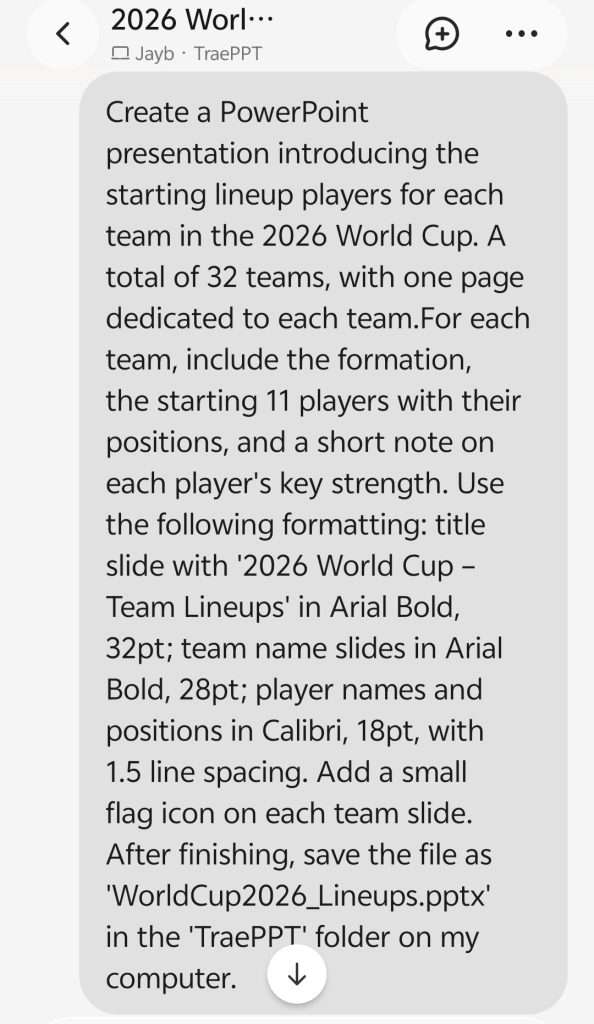
You open the Trae Solo app on your phone, select the target folder C:\TraePPT on your office computer, and type (or speak):
“Create a PowerPoint presentation introducing the starting lineup players for each team in the 2026 World Cup. A total of 48 teams, with one page dedicated to each team. For each team, include the formation, the starting 11 players with their positions, and a short note on each player’s key strength. Use the following formatting: title slide with ‘2026 World Cup – Team Lineups’ in Arial Bold, 32pt; team name slides in Arial Bold, 28pt; player names and positions in Calibri, 18pt, with 1.5 line spacing. Add a small flag icon on each team slide. After finishing, save the file as ‘WorldCup2026_Lineups.pptx’ in the ‘TraePPT’ folder on my computer.”
The Execution (7 minutes, step by step)
- Minute 0 – You send the command. The Trae Agent on your office computer wakes up and confirms the target folder
C:\TraePPT. - Minute 1 – The Agent initiates a web search for the official 2026 World Cup team rosters (it pulls data from reliable sports databases and news sources). It identifies the 48 qualified teams and their most recent starting formations.
- Minutes 2–4 – The Agent automatically generates a structured slide deck:
- Slide 1: Title slide with the specified Arial Bold 32pt text.
- Slides 2–49 (one per team): Each slide features the team name (Arial Bold, 28pt), a small flag icon (sourced from a public icon library), and a neatly formatted list of the starting 11 players. Each player entry shows the position (e.g., GK, CB, CM, FW) and a one-line strength note. The body text follows Calibri 18pt with 1.5 line spacing, as requested.
- Minute 5 – The Agent adds a final slide with a summary of the tournament format and group stage highlights (optional, but automatically included for context).
- Minute 6 – The Agent saves the presentation as
WorldCup2026_Lineups.pptxdirectly intoC:\TraePPTon your office computer. It also creates a backup copy in the same folder with a timestamp. - Minute 7 – Your phone receives a completion notification with a preview thumbnail. You can now open the file remotely (via cloud drive) or just trust it’s ready for tomorrow.
Result
A fully formatted, data-rich 49-slide presentation, built entirely by AI from a single voice command — with precise font sizes, line spacing, and flag icons applied automatically. No manual typing, no layout tweaks, and no stress.
💡 Real-world validation: One developer built and deployed a children’s picture book PPT generator using Trae Solo in just one day. Another user reported that Trae-generated PPTs are “highly practical and can be downloaded and used directly without extensive modification.”
5. Advanced Tips for Power Users
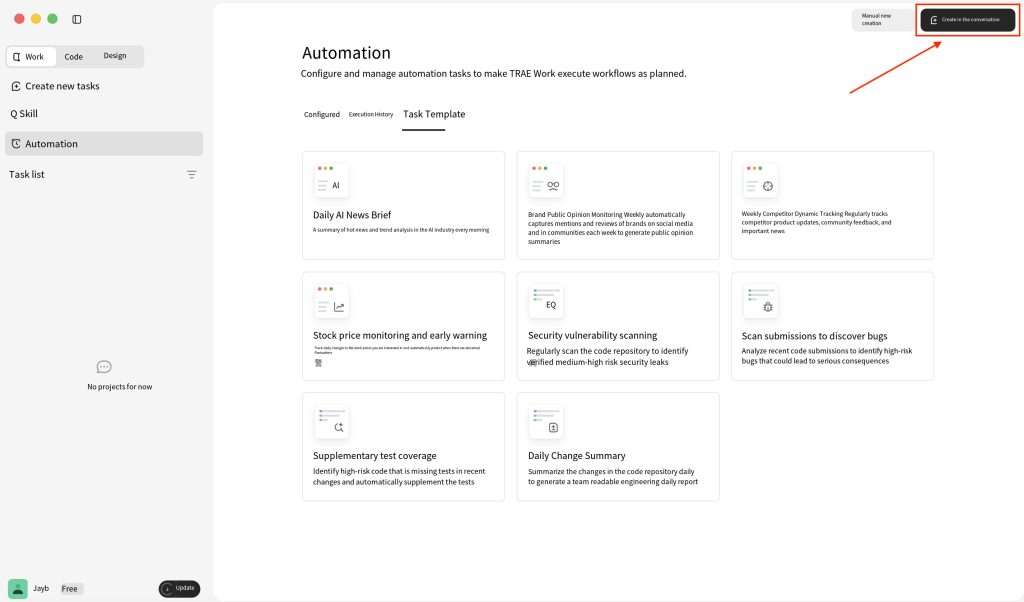
Tip 1: Create a Style “Skill” for One-Click Branded PPTs
If you frequently create presentations in the same style (e.g., company brand guidelines), upload a template and let Trae extract the style into a reusable Skill:
- In Trae Solo chat: “Create a PPT style Skill based on this template. Extract the color palette, fonts, layout, and background styling.”
- Upload your template PPT
- Trae generates and saves the Skill
Next time, just say: “Generate a quarterly review PPT using the ‘Corporate Brand’ Skill.” The AI applies your exact brand standards automatically.
Tip 2: Use Work Mode for “Analyze First, Generate Later”
Trae Work mode supports a phased workflow:
- Round 1: Have the AI analyze your source materials and output a content outline
- Round 2: Review the outline, then ask for a design brief
- Round 3: Generate the PPT and export
- Round 4: Iterate with specific adjustment requests
This approach gives you more control for complex presentations that need careful review at each stage.
Tip 3: Use Trae Solo Web — No Local Environment Needed
If your computer doesn’t have Python or certain libraries installed, use Trae Solo Web (cloud version). It runs on a remote server (1.5TB storage, Linux) and automatically handles dependencies. You just download the final PPT file.
6. Pros and Cons: What Real Users Are Saying
What Works Well ✅
1. Natural language understanding is exceptional
Trae’s language-to-code/document accuracy is industry-leading, with a reported 98% accuracy rate in CSDN’s 2024 evaluation. Multiple Reddit users have noted its strong performance across both English and Chinese prompts.
2. The free tier is genuinely free
Trae’s basic plan is permanently free with no limits on AI calls. For independent developers and small teams, this saves roughly **$200+ per year** compared to paid alternatives like Cursor ($20/month).
3. Zero migration friction
Built on the same architecture as VS Code, Trae supports one-click import of all your extensions, keybindings, and snippets. One developer reported migrating a 30,000-line Django project “without breaking a sweat.”
4. End-to-end automation
From requirements analysis to code generation to testing to deployment, Trae’s SOLO/Work mode handles the entire workflow autonomously. It can install dependencies, start dev servers, and check browser output without human intervention.
Where It Falls Short ❌
1. Plugin ecosystem is still catching up
While based on VS Code architecture, Trae’s plugin marketplace isn’t as extensive. Some niche extensions or specialized language support may not be available.
2. Complex enterprise-scale projects can be challenging
For extremely large, highly complex codebases, Trae doesn’t yet match the depth of tools like Claude Code.
3. Some features feel more like marketing than substance
One user noted the voice input feature is “theoretically convenient for lazy people, but you still need to think through your prompts carefully.” New features roll out fast, but stability takes time.
7. Real User Reviews (North America & Europe)
“I switched from Copilot to Trae for my side project and honestly didn’t expect much. But the accuracy is insane — I write prompts in plain English and it just works. The free tier is actually usable, not like those ‘free trial’ gimmicks.”
— Alex Chen, Independent Developer, San Francisco
“Trae’s Builder mode cut my MVP development time from two weeks to three days. I’m not a great coder, but I don’t have to be anymore.”
— Sarah Mitchell, Product Founder, London
“The migration from VS Code took me under 3 minutes — all my extensions, keybindings, snippets just carried over. That’s how you win over developers.”
— James Rodriguez, Full-Stack Engineer, Austin
“I was skeptical about yet another AI coding tool, but Trae’s SOLO mode actually delivered. It handled a 30k-line Django project without breaking a sweat.”
— Dr. Emily Watson, Tech Lead, Berlin
“I used Trae Solo to build a complete RAG knowledge base demo in one afternoon. The mobile app isn’t great for heavy coding, but for data analysis, document generation, and quick tasks, it’s a game-changer.”
— Reddit user, r/artificial
8. FAQ
Q1: Do my phone and computer need to be on the same Wi-Fi?
No. SOLO Mobile routes through the cloud. As long as both devices have internet access, they can connect — you at home, your computer at the office, anywhere.
Q2: What happens if I close the app while a task is running?
The task continues. Execution happens on your computer, not your phone. You can close the app, and the AI Agent keeps working. Reopen anytime to check progress.
Q3: Can Trae edit existing .pptx files?
Yes. Trae SOLO can understand and process PPTX, JSON, Python, CSV, and many other file formats. It can open, modify, add slides, and save existing presentations.
Q4: Do I need Python installed to generate PPTs?
It depends. If using the desktop version, you’ll need Python and libraries like python-pptxinstalled. If you want to avoid environment setup, use Trae Solo Web — the cloud version handles all dependencies automatically.
Q5: How long does device pairing last?
180 days. No need to re-pair every time you use it.
Q6: What about data privacy and security?
Trae offers a Privacy Mode and sandbox execution. Enterprise versions support private deployment options for sensitive code and documents. Only your conversation history and AI-generated outputs are stored in the cloud — not your raw files.
Q7: Can I use Remote-SSH to edit PPTs on a Linux server?
Yes, with limitations. Remote-SSH works with Linux remote hosts (Ubuntu 20.04+ or Debian 11+ recommended). However, directly editing PPTX files on a headless server typically requires using libraries like python-pptx programmatically rather than opening the file in a GUI.
9. Summary: Who Should Use Trae?
| Your Situation | Recommendation |
|---|---|
| Student / beginner on a budget | ⭐⭐⭐⭐⭐ Free + easy to learn |
| Independent developer shipping fast | ⭐⭐⭐⭐⭐ Builder/Work mode is a game-changer |
| Migrating from Copilot or VS Code | ⭐⭐⭐⭐⭐ Migration takes ~3 minutes |
| Occasional coding / small fixes | ⭐⭐⭐⭐ IDE mode is solid |
| Enterprise-scale complex projects | ⭐⭐⭐ Depth needs improvement |
In 2026, AI tools have evolved from “code completion” to full-workflow automation. Trae stands out with three advantages: genuinely free, strong natural language understanding, and end-to-end automation — whether you’re in San Francisco, London, or Berlin, whether you’re a seasoned developer or just getting started.
The bottom line: If you want a free AI assistant that can remotely control your computer to build and edit presentations, Trae is worth the 10 minutes it takes to set up.
If you want to read more articles about AI tools, feel free to follow my AI tool articles.